How to Make a Gantt Chart in Excel (Without an Add-In)
Gantt chart Excel in 7 steps: build the stacked-bar chart with no add-in, test it on an 8-task project, and fix the dependency mistake that breaks most files.
By All-in-One Task Tracker by Cosmo Suite · Editorial policy
Published · 10 min read
You want a timeline for a small project, but Excel offers no button for it, and most guides either send you to an installable add-in or give you a chart that looks correct until the first date changes.
The short answer: build the Gantt chart from a stacked bar chart. List each task with a start date and a number of days, insert a Stacked Bar chart, hide the Start series and flip the task order. Then make each start date read from the end date of the task it waits for. That last part is what most Gantt chart Excel tutorials leave out.
Below you'll find the seven steps, an 8-task project worked through with real dates, and the one mistake that makes a Gantt chart go stale.
Gantt Chart in Excel at a Glance
A Gantt chart is a bar chart laid over a calendar. Each task gets one row and one bar, and the position and length of the bar show when the task starts and how long it continues. For example, a bar that begins in the middle of the chart and stretches across a third of it is a task that starts late and takes a while. The table compares four ways to get one into a spreadsheet.
| Method | Setup time | Moves when a date changes? | Best for |
|---|---|---|---|
| Stacked bar chart (this post) | About 10 minutes | Yes, if start dates are formulas | One project, no installs |
| Excel's ready-made Gantt template | A few minutes | Depends on the template | Copying a fixed layout |
| Add-in or app | Install, then learn | Yes | Teams with shared plans |
| A file with the Gantt tab built in | Type the rows | Yes | Several small projects |
[Original data] We reviewed the live Google US results for "gantt chart excel" in early October 2026. Of the seven organic results we recorded, three were how-to guides (one of them a video), two were template pages, one was a template add-on product and one was a forum thread. None of the how-to pages tested what happens to the chart when a task runs late.
The stacked bar method costs nothing and teaches you how the chart works. Its weak spot is not the chart itself but the start dates, which people usually type in as fixed numbers, so that nothing moves when a task runs late.
The 8-Task Project, Worked Through
The example is a small side project: launching a newsletter. It has 8 tasks, written for this post, and three of them can run at the same time as others. We use calendar days and start on Monday 2 November 2026.
| # | Task | Start | Days | End | Waits for |
|---|---|---|---|---|---|
| 1 | Pick the topic and name | Mon 2 Nov | 3 | Thu 5 Nov | none |
| 2 | Choose the email tool | Thu 5 Nov | 2 | Sat 7 Nov | 1 |
| 3 | Set up the sign-up page | Sat 7 Nov | 4 | Wed 11 Nov | 2 |
| 4 | Write issue 1 | Thu 5 Nov | 6 | Wed 11 Nov | 1 |
| 5 | Design the email template | Sat 7 Nov | 5 | Thu 12 Nov | 2 |
| 6 | Send a test to 5 friends | Thu 12 Nov | 2 | Sat 14 Nov | 4 and 5 |
| 7 | Fix the feedback | Sat 14 Nov | 3 | Tue 17 Nov | 6 |
| 8 | Send issue 1 | Tue 17 Nov | 1 | Wed 18 Nov | 3 and 7 |
End means the day the task finishes, counted as Start plus Days. The whole project runs sixteen days, from 2 November until the evening of 18 November. The chain that sets the finish date is tasks 1, 2, 5, 6, 7 and 8: 3 + 2 + 5 + 2 + 3 + 1 = 16 days. Task 4 can slip by a day and nothing changes. Task 1 cannot, because everything else eventually depends on it.
Consider what a plain list would tell you here: eight rows, each with a date. It would not tell you that one early task controls the finish date, which is the information a timeline adds and the reason to draw the chart at all.
Step 1: Set Up Five Columns
Put the headers in row 1: Task (A), Start (B), Days (C), End (D) and Waits for (E). Format B and D as dates. Enter the eight tasks in rows 2 to 9, one per row, with task 1 in row 2.
Type only the first start date, 2 Nov 2026 in B2, together with the estimated number of days for each task in column C. Leave the remaining start dates empty until Step 3 explains how they are calculated. Column E is a note for you; the chart does not read it.
Step 2: Make End Dates a Formula
In D2 enter =B2+C2 and fill it down to D9. Every end date now follows its start date and its length, so changing a number in column C moves the end.
If you work in working days, use the WORKDAY function instead, which skips weekends. Microsoft's WORKDAY reference shows its start date and days arguments (Microsoft Support, checked 13 October 2026). This post keeps calendar days so the bars match the table above.
Step 3: Make Start Dates Wait for the Tasks Before Them
This is the step that decides whether the chart stays true. Instead of typing a start date, point it at the end date of the task it waits for. Use the rows from the table. Each formula below sits in column B of its own row:
- B3:
=D2(task 2 waits for task 1) - B4:
=D3(task 3 waits for task 2) - B5:
=D2(task 4 waits for task 1) - B6:
=D3(task 5 waits for task 2) - B7:
=MAX(D5,D6)(task 6 waits for tasks 4 and 5) - B8:
=D7(task 7 waits for task 6) - B9:
=MAX(D4,D8)(task 8 waits for tasks 3 and 7)
When a task depends on two predecessors, it cannot begin until the later of them has finished, and the MAX function returns exactly that larger date. Microsoft's MAX function page describes it as returning the largest value in a set (Microsoft Support, checked 13 October 2026). Check the result: D9 should read 18 Nov 2026.
Step 4: Insert a Stacked Bar Chart
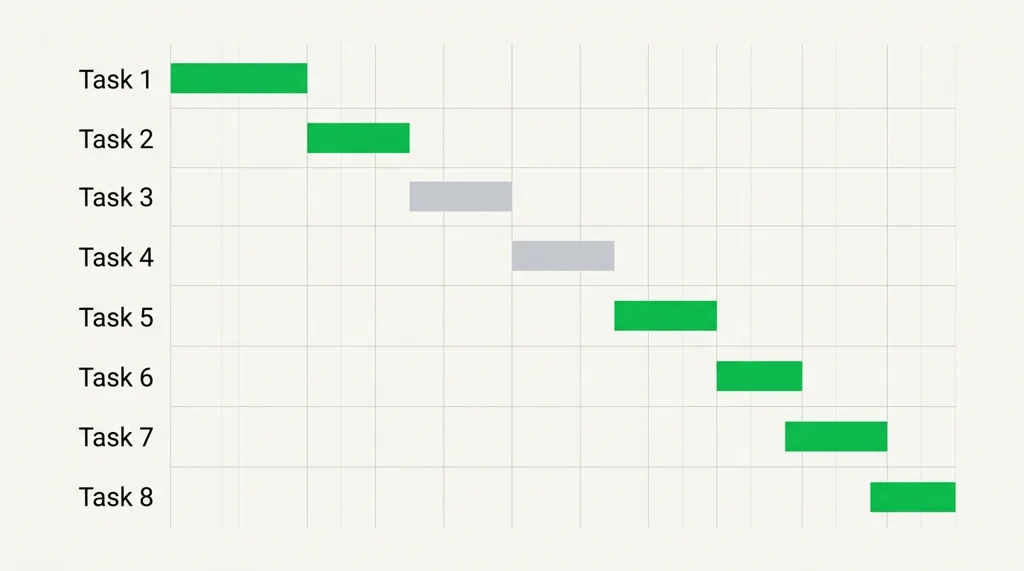
Select A1:C9, which holds the Task, Start and Days columns. Do not include End. Then choose Insert, then Recommended Charts, then Stacked Bar. Microsoft's Gantt chart guide uses the same route, and it states that "Excel doesn't have a predefined Gantt chart type" when explaining why a stacked bar is used (Microsoft Support, checked 13 October 2026).
You'll see two colored bars per task. The first is the Start series, a long bar from zero to the start date. The second is Days, the part you want to see.
Step 5: Hide the Start Series
Click the first series, which is the Start portion of every bar, and on the Format tab choose Shape Fill and then No Fill. The long invisible bar disappears from view, and each Days bar now floats at the correct position along the timeline.
Delete the legend and the chart title if the surrounding sheet already explains what the chart represents. The chart already resembles a Gantt chart, although the first task still sits at the bottom and the horizontal axis begins much earlier than your project does.
Step 6: Reverse the Task Order and Trim the Dates
Hold Control and select the vertical axis, then open Format Axis and tick Categories in reverse order, so that the first task moves to the top in the same order as the table.
Next, select the horizontal date axis. Its minimum is probably a date serial number from decades ago, which wastes most of the chart. Excel stores 2 November 2026 as 46328, so set the axis minimum to 46328 and the maximum to 46345, the day after the finish. The chart now concentrates on the seventeen days of the project instead of spreading across several decades of empty calendar.
To check any date's serial number, type the date in a cell and format that cell as a number.
Step 7: Test It by Making Task 1 Late
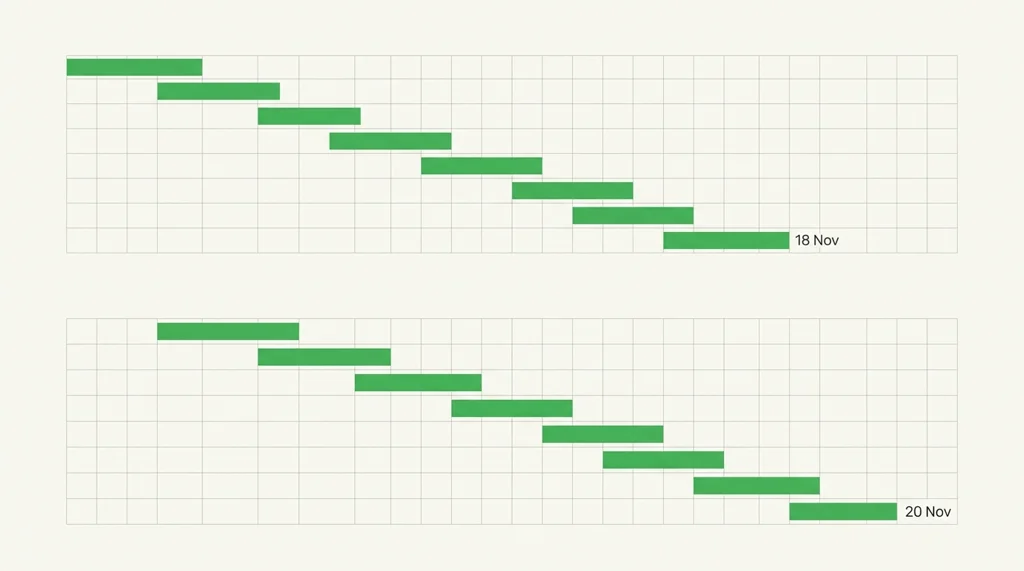
A Gantt chart earns its place when something goes wrong. Change C2 from 3 days to 5 days, as if choosing the name took two days longer. Watch what happens.
- Tasks 2 to 8 shift right by 2 days, because each start date reads from the end date before it.
- The finish date moves from 18 Nov to 20 Nov.
- Task 4 also moves 2 days right, because it waits for task 1 too.
If your chart does not move, a start date was probably typed in by hand, so find that cell, replace it with the formula from Step 3 and repeat the test. Change C2 back to 3 days when the experiment is finished.
The Dependency Mistake That Breaks Most Gantt Charts
Most hand-made Gantt charts fail the Step 7 test, because the dates in column B are typed numbers. The chart is correct on the first day and wrong by the third, since a late task 1 moves its own bar and none of the others.
[Unique insight] In the 8-task example, six of the eight tasks belong to the chain of dependent work that determines the finish date. If task 1 slips and the other start dates are typed, the chart still shows 18 November, and the real finish is 20 November. The chart looks fine and is wrong.
The underlying reason is that a spreadsheet recalculates only what is connected by a formula. Any date entered manually becomes an independent assumption that nothing else in the workbook can correct. Connecting each start date to the end date of its predecessor turns the sheet from a picture of the plan into a working model of it, and that allows a single change to travel through the whole schedule. Three habits keep the file reliable:
- Type only the first start date. Every other start date is a formula.
- Keep the Waits for column. Writing "4 and 5" next to each task makes missing formulas easy to spot.
- Change Days, never End. End is a formula too. Overwriting it breaks the chain behind it.
For the same list of tasks in a plain table, see how to set up a task tracker in Excel.
When a Gantt Chart Is the Wrong Tool
A Gantt chart helps when tasks wait on each other. It adds nothing when they don't. If you have a dozen unrelated tasks that each carry only a due date, a sorted list is considerably faster to maintain, and a task list template with a due date column is enough.
Ask yourself one question before you build anything: does any task wait for another? If it does, a timeline shows which delay moves the finish. If it doesn't, skip the chart. Imagine moving house with three unrelated errands: a list works, and a chart only adds work.
Two additional limitations deserve careful attention before you commit to the method for a larger plan. A stacked bar chart cannot draw connecting arrows between related tasks, and it displays no completion progress inside a bar, so both features require either a dedicated project management application or a template that was designed to include them. If your plan is about what to do first today rather than when things end, the Eisenhower matrix answers that better.
Where the All-in-One Task Tracker Fits
The hand-built chart works well for a single project, although every additional project means rebuilding five columns, seven formulas and a chart that has to be reformatted from the beginning. The All-in-One Task Tracker (by Cosmo Suite: one Excel and Google Sheets file, 11 tabs, $9 once) has the Gantt Chart tab already built.
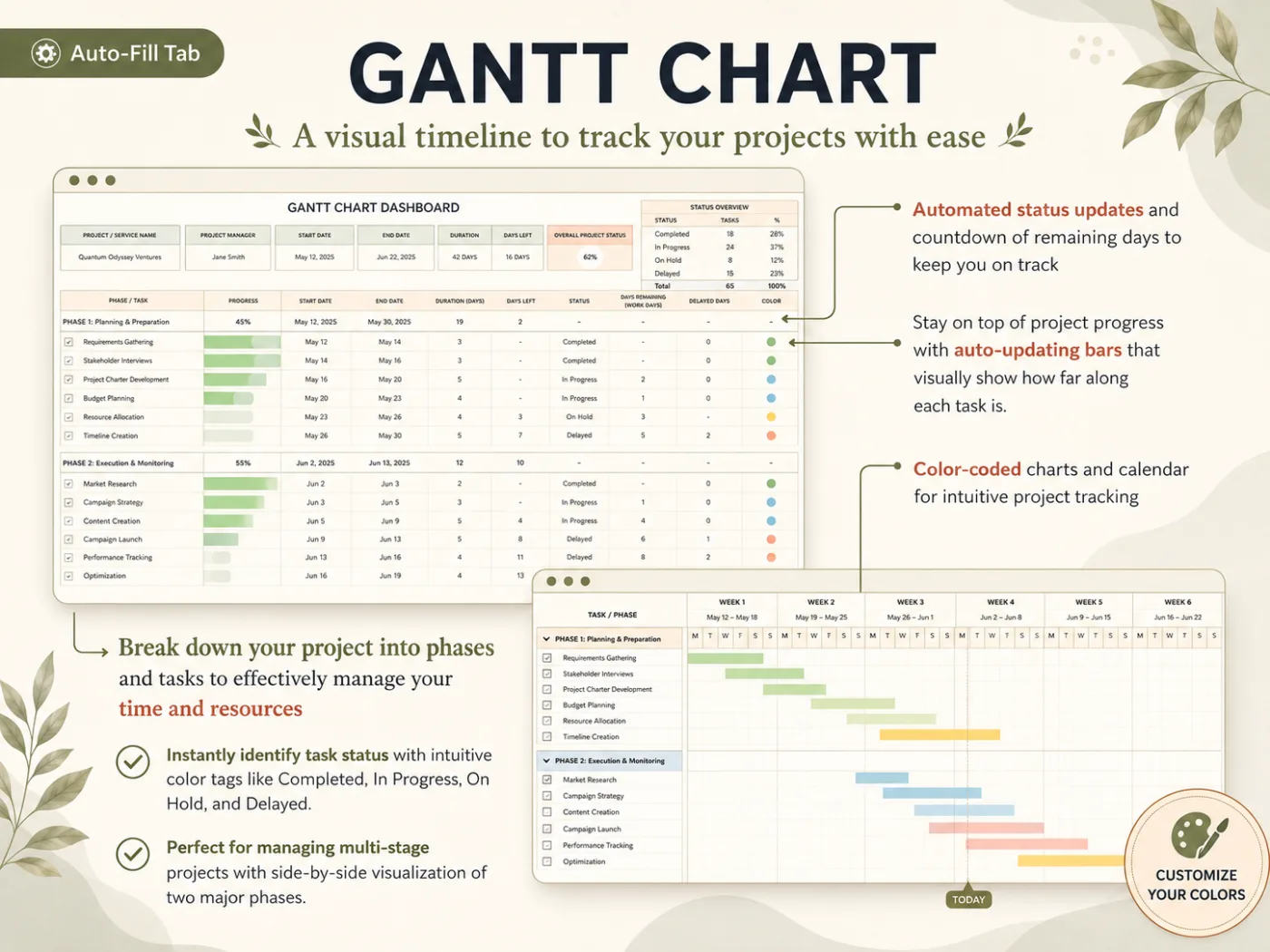
Its Gantt Chart tab is one of the three prioritization tabs, next to the Decision Matrix and the Kanban Board. You enter a project's phases and tasks with their start and end dates. The tab shows a dashboard of dates, duration, days left and status counts, plus a weekly timeline with color-coded bars and a marker for today. Status labels run from Completed to In Progress, On Hold and Delayed.
The tracker tracks up to 10,000 tasks, so the same file holds your project and your everyday list. An Excel and Google Sheets task tracker with Gantt and Kanban tabs reads both from the same rows, so a date typed once shows up wherever the task appears.
The tracker does not draw dependency arrows, send reminders, synchronize with Google Calendar or Outlook, or manage team permissions, and it was never designed to. If you run a project with many people and shared deadlines, a team tool is the better pick. The tracker is for one person or a small household who want a file they own. The file works in Excel and Google Sheets, and comes with a setup PDF and a YouTube tutorial.
How we put this together. The Cosmo Suite team that makes the tracker wrote this post. Our methodology: the 8-task newsletter project is an example written for this post, not data from users, and every date and formula in it was worked out by hand and checked against the table above. The chart steps follow Microsoft's published guide, which we opened on 13 October 2026, and the screenshot shows the template's built-in sample data. Read more about the team behind this site and our editorial policy. If something here is out of date, contact us through the site and we'll correct it. You can see every tab of the All-in-One Task Tracker before you decide.
Frequently asked questions
Does Excel have a built-in Gantt chart?
No. Excel has no Gantt chart type. Microsoft's own instructions build one from a stacked bar chart, and this post follows the same method. Ready-made Gantt templates exist, but they are fixed layouts, not a chart type you can pick.
How do I make a Gantt chart in Excel without an add-in?
Use a stacked bar chart. List each task with a start date and a duration, insert a Stacked Bar chart, make the Start series invisible, and reverse the task order. The seven steps in this post take about ten minutes for eight tasks, and nothing needs installing.
Can I make a Gantt chart in Excel with dependencies?
Not with the chart alone. A stacked bar chart only draws dates; it knows nothing about order. You add dependencies in the cells: set a task's start date to the end date of the task it waits for, or to a MAX of several end dates. Then a slipped task moves everything behind it.
Should the Gantt chart use calendar days or working days?
Either, but pick one and say so. This post uses calendar days, so a task that runs over a weekend keeps its bar through the weekend. If you work in working days, swap the End formula for the WORKDAY function, which skips weekends.
Is a Gantt chart too much for a small personal project?
It depends on how many tasks wait on each other. With three or four independent tasks, a list with due dates is enough. Once you have eight tasks and several wait on others, a timeline shows which late task pushes the finish date, and that is when a Gantt chart pays off.
What is the fastest way to get a Gantt chart in Excel?
Start from a file where the chart already exists. The All-in-One Task Tracker has a Gantt Chart tab that fills in from your project's tasks and dates, so you type the rows and skip the chart setup. Building it by hand is still worth doing once if you want to see how the chart works.
